Friday, 19 January 2024

Azure DevOps Setup for Deploying Dynamics 365 F&O Package

Before delving into the creation of a deployment pipeline for Dynamics 365 Finance & Operations (D365FO), it is essential to establish a robust foundation. This involves setting up and installing necessary packages along with addressing specific pre-requisites. A well-prepared environment ensures a smooth and efficient deployment process, enhancing the overall effectiveness of the pipeline. This introduction will guide you through the crucial steps by steps required for the initial setup before embarking on the creation of the D365FO deployment pipeline.

Step:1 To begin, install the 'Dynamics 365 Finance and Operations Tools' from the Azure DevOps marketplace.


Step 2: Next, download the NuGet Packages from the LCS Shared Asset Library. Navigate to the NuGet packages tab and proceed to download the four packages corresponding to your Development environment's Platform Update version.


Step 3:
Download below packages:
a.       Application Build Reference (Microsoft.Dynamics.AX.Application.DevALM.BuildXpp.nupkg)
b.       Application Suite Build Reference (Microsoft.Dynamics.AX.ApplicationSuite.DevALM.BuildXpp.nupkg)
c.       Compiler Tools (Microsoft.Dynamics.AX.Platform.CompilerPackage.nupkg)
d.       Platform Build Reference (Microsoft.Dynamics.AX.Platform.DevALM.BuildXpp.nupkg)


Step 4:
Now navigate to your DevOps Project -> Artifacts -> Connect to Feed.


Step 5:
Click on NuGet.exe.
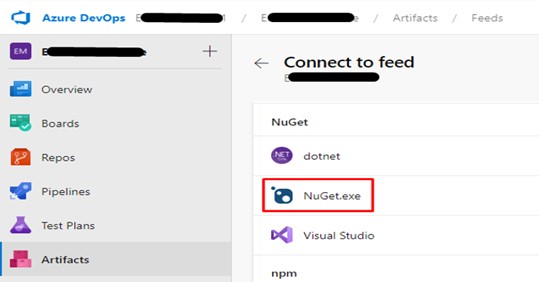


Step 6:
Create a nuget.config file by copying the highlighted section in the screenshot from DevOps provided below.


Step 7:
Now go back to the Artifacts window then click the gear icon to open the feed Settings.


Step 8:
In the Retention Policies section, check the box to enable package retention. Specify the Maximum number of versions per package and set the Days to keep recently downloaded packages. It's important to be aware that the available free storage space is limited to 2GB, and your configuration will impact storage costs. Click 'Save' upon completion.


Step 9:
Now download the latest exe NuGet from this link.

Step 10:
Now gather all the NuGet Packages and Config file in a folder.


Step 11:
Open CMD as Administrator, Run the command for navigate to downloads folder as: cd “C:\Users\<your username>\Downloads\NugetPackagesD365FO”.


Step 12:
Publish your NuGet packages by providing the package path, an API Key (any string will do) and the feed URL. To publish, run these commands in the Command Prompt window:
a.       nuget.exe push -Source “<xxxxx>” -ApiKey az Microsoft.Dynamics.AX.Application.DevALM.BuildXpp.nupkg
b.       nuget.exe push -Source “<xxxxx>” -ApiKey az Microsoft.Dynamics.AX.ApplicationSuite.DevALM.BuildXpp.nupkg
c.       nuget.exe push -Source “<xxxxx>” -ApiKey az Microsoft.Dynamics.AX.Platform.CompilerPackage.nupkg
d.       nuget.exe push -Source “<xxxxx>” -ApiKey az Microsoft.Dynamics.AX.Platform.DevALM.BuildXpp.nupkg

Note: Replace the source <xxxxx> above with the key from your nuget.config file.


Step 13:
When prompted for a password, type in the Personal Access Token (PAT) for the user instead of the normal password. Here’s a link to read more about PAT.


Step 14:
Now copy the version of four nuGet packages from the DevOps Artifacts as shown below.


Step 15:
Now create a file by the name "packages.config" and paste version which is copied from above step.


Here is the text of the above packages.config.

<?xml version=”1.0″ encoding=”utf-8″?>
<packages>
<package id=”Microsoft.Dynamics.AX.Platform.DevALM.BuildXpp” version=”7.0.6801.80″ targetFramework=”net40″ />
<package id=”Microsoft.Dynamics.AX.Application.DevALM.BuildXpp” version=”10.0.1515.81″ targetFramework=”net40″ />
<package id=”Microsoft.Dynamics.AX.ApplicationSuite.DevALM.BuildXpp” version=”10.0.1515.81″ targetFramework=”net40″ />
<package id=”Microsoft.Dynamics.AX.Platform.CompilerPackage” version=”7.0.6801.80″ targetFramework=”net40″ />
</packages>

Step 16:
Now the last step before creating the pipeline creation download the JSON template from github: xpp-classic-ci.json.

That's all. I trust this article proves to be beneficial for you.

Monday, 5 October 2020

Set up Online VM for Dynamics 365 Finance and Operation for Technical and Functional Learning Purposes

In this blog, I will discuss how we set up an online VM for D365F&O for Technical and Functional learning purposes for free.

Step: 1 Click this link to set up a free Azure VM. 


Step: 2 Sign-in with your email (outlook, live, or Hotmail). 


Step: 3
Provide your details. 


Step: 4
Select roles. (I have selected roles as per technical requirement)


Step: 5
Select your level.


Step: 6
Select products you have interested in.


Step: 7 Complete the setup.


When you completed the setup, launch VM mode as shown in the image.


When VM started Type Password as shown in the image.


After you type the password basic admin provisioning command will run as shown in the below image.


As you select the password, now select sign-in email and password as shown in the images.


That is all. You can now use this VM for technical and functional learning as you like.

Note: VM has a time limit for 4 hours. Also, there is no need to create another account after the VM is expired simply re-login with your existing account and you are good to go.


Monday, 28 September 2020

Get Batch Reserve Quantity with Item Id Unit Conversion

Below code will return batch reserve quantity with item id unit conversion, if you do not need unit conversion simply use without conversion method.

/// <summary>

    /// Get reserve physical Quantity

    /// </summary>

    /// <param name = "_salesLine">Sales line</param>

    /// <returns>Reserve physical Qty</returns>

    public InventQtyReservPhysical getReservedPhysicalQty(SalesLine  _salesLine)

    {

        InventQtyReservPhysical inventQtyReservPhysical;


        if(_salesLine!=null)

        {

            InventTable inventTable = InventTable::find(_salesLine.ItemId);

            inventQtyReservPhysical = decRound(UnitOfMeasureConverter::convert(_salesLine.reservedPhysical(),

            UnitOfMeasure::unitOfMeasureIdBySymbol(inventTable.inventUnitId()),

            UnitOfMeasure::unitOfMeasureIdBySymbol(_salesLine.SalesUnit),

            NoYes::No,

            InventTable::itemProduct(inventTable.ItemId),

            NoYes::No), 0);

        }

        return inventQtyReservPhysical;

    }


Tuesday, 18 February 2020

Upload file in azure storage account in D365FO

In this blog I will discuss how we can upload file in storage account in D365FO. We normally use azure storage account to hold thing that need to be further processed and stored on cloud.

Please see below code with explanation.

Explanation of source code (1.1):
  • Getting azure credentials from vend parameter tables.
  • Setting connection to access storage account.
  • Initialize cloud file client which used to configure and execute requests against the File service
  • Initialize cloud file share.
  • Check file share exists or not.


Explanation of source code (1.2):

  • Initialize cloud file directory which is directory of files which hold directories, and directories hold files.
  • Gets a reference to a virtual blob directory beneath this container.
  • Initialize cloud file.
  • Uploads a stream to a file. If the file already exists on the service, it will be overwritten.


Complete Source Code (Method):

/// <summary>
    /// Upload file to azure file storage
    /// </summary>
    /// <param name = "_fileContentInStream">File stream</param>
    /// <parmam name = "_folderName">Folder where file saves</param>
    /// <param name = "_fileName">File name</param>
    /// <returns>True or False</returns>
    public static boolean uploadFileToAzureFileStorage(System.IO.Stream _fileContentInStream , str _folderName, str _fileName)
    {
        try
        {
            //Getting azure credentials from vend parameter tables (in my case)
            VendParameters  vendParameter = VendParameters::find();

            //Setting connection
            Microsoft.WindowsAzure.Storage.Auth.StorageCredentials storageCredentials = new Microsoft.WindowsAzure.Storage.Auth.StorageCredentials("Your storage account name",
                "Your storage account access key");
            Microsoft.WindowsAzure.Storage.CloudStorageAccount storageAccount = new Microsoft.WindowsAzure.Storage.CloudStorageAccount(storageCredentials, true);
           
            //Provides a client-side logical representation of the Microsoft Azure File service.
            //This client is used to configure and execute requests against the File service.
            Microsoft.WindowsAzure.Storage.File.CloudFileClient fileClient = storageAccount.CreateCloudFileClient();
           
            //Represents a share in the Microsoft Azure File service.
            Microsoft.WindowsAzure.Storage.File.CloudFileShare share = fileClient.GetShareReference("Your file share name");

            //If not exist throw error
            if (!share.Exists(null, null))
            {
                throw error(strFmt("File share not exists."));
            }

            //Represents a directory of files which hold directories, and directories hold files.
            Microsoft.WindowsAzure.Storage.File.CloudFileDirectory cloudDir = share.GetRootDirectoryReference();

            container conFolders = str2con(_folderName, '/');

            for (int i = 1; i <= conlen(conFolders); i++)
            {
                str folderName = conpeek(conFolders, i);

                //Gets a reference to a virtual blob directory beneath this container.
                cloudDir = cloudDir.GetDirectoryReference(folderName);
                cloudDir.CreateIfNotExists(null, null);
            }

            //Represents a file in the Microsoft Azure File service.
            Microsoft.WindowsAzure.Storage.File.CloudFile file = cloudDir.GetFileReference(_fileName);

            //Have to run Seek on Stream.
            if (_fileContentInStream.CanSeek)
            {
                _fileContentInStream.Seek(0, System.IO.SeekOrigin::Begin);
            }

            //Uploads a stream to a file. If the file already exists on the service, it will be overwritten
            file.UploadFromStream(_fileContentInStream, null, null, null);

            return true;
        }
        catch
        {
            return false;
        }
    }

That is all you have to do to upload files on azure storage accounts.

Tuesday, 4 February 2020

How to Effectively analyze ETA for any D365F&O Technical Task

I personally, and I'm sure almost all of you, heard questions like "When would it be ready? Or When will you deliver this task?" So in this blog I will discuss how I estimates time to accomplish D365F&O technical tasks.

Understand Customer Requirement:

Giving an ETA without understanding the task is like "Not knowing the destination of the ship and you estimates how long the trip takes". So in first place understanding the customer's requirement is most important.

Order Your Activities:

At this stage, you don't need to add in how long you think activities are going to take. However, you might want to note any important deadlines. For example, you might need to get documentation of another component of the system before starting integration.

Breakdown Your Estimates (into):

Known knowns: 
How long will it take to do what you know how to do. 

Known unknowns: 
How long do you think it will take to do what you don't know how to do.

Unknown unknowns: 
This is the real time black hole. Provide a range for the estimate with justification based on the risks you anticipate.

Offer to adjust the estimate and certain milestones along the way. Any "unknown unknowns" will become "known unknowns", the "known unknowns" should become "known knowns" as you gain experience, and the estimate of you "known knowns" can be adjusted based on progress to date. You can do an initial estimate, then re-estimate when you about 25% done, then again at 50%, then again at 85%. At each milestone your estimate should start converging on the actual time the tasks will take.

ETA Should Contains (as per the requirement from the client):

  • FDD Review
  • Development analysis
  • Coding
  • Run best practices + proper comments where needed
  • Unit testing
  • Quality assurance
  • Documentation (FRD, FDD, TDD, Test Cases, Release notes, Deployment document)
  • Code review
  • Build and Sync
  • Code merge or check-ins
  • Deployment (creating deployable package, deploying on other environments e.g., QA, CRP, UAT, Gold)
Examples For ETA:

Example # 1 - In this example ETA is not detailed or descriptive.


Example # 2 - 
In this example ETA it is much detailed or descriptive.


That is all, I believe this blog will add a value in your programming.

How to Check if a Purchase Order Is Partially Received in D365 F&O

In Dynamics 365 Finance & Operations, you may need to determine whether a Purchase Order (PO) is partially received — meaning some quan...