Tuesday, 26 December 2017

Install deployable packages by using command line instead of LCS in D365

In this blog we will discuss that how we can install deployable packages by using the command line. Deployable package is a package that contains customization's and extensions to your application. 

In AX7 / D365 we have two ways for the deployment of packages.
1- Binary update
2- AOT deployable package

In any deployable packages we have three key concepts which describes as below.
1- Deployable package: Consist of hotfixes.
2- AxUpdateInstaller: Executable program that is bundled in the deployable package.
3- Runbook: Series of steps that is generated and used to apply the deployable package.

Steps for installation:
1. Make sure your deployable package folder name does not contains any white space.
2. Unzip deployable packages to your local folder.
3. Close all Visual studio, SQL Server and internet explorer instances.
4. Open command prompt and Run as Administrator.
5. Change directory to deployable package. Command to target your folder
    cd [your deployable package folder path]
6. Run command AXUpdateInstaller.exe list to see any other runbooks which are already exist. Make sure you don't use already created runbook id. Please create unique runbook id.
7. For creating runbook id run this command AXUpdateInstaller.exe generate -runbookid="MyRunBookId-runbook" -topologyfile="DefaultTopologyData.xml" -servicemodelfile="DefaultServiceModelData.xml" -runbookfile="MyRunBookId-runbook.xml".
7. Now import runbook using command AXUpdateInstaller.exe import -runbookfile=MyRunBookId-runbook.xml"
8. As final step for execution run this command AXUpdateInstaller.exe execute -runbookid=MyRunBookId-runbook"

Commands:

1- AXUpdateInstaller.exe list
2- AXUpdateInstaller.exe generate -runbookid="MyRunBookId-runbook" -topologyfile="DefaultTopologyData.xml" -servicemodelfile="DefaultServiceModelData.xml" -runbookfile="MyRunBookId-runbook.xml"
3- AXUpdateInstaller.exe import -runbookfile=MyRunBookId-runbook.xml
4- AXUpdateInstaller.exe execute -runbookid=MyRunBookId-runbook

MSDN Link: https://docs.microsoft.com/en-us/dynamics365/unified-operations/dev-itpro/deployment/install-deployable-package

Thursday, 21 December 2017

How to access private members through reflection in AX7 / D365

In AX7 / D365 by default all class members have protected access modifier. We can use these members in our custom classes through extentions but sometime it will become a real problem when we try to extend OOTB classes. 

So without using extensions of the class we have apparently two options:
1- Overlayering (Will not be available after Update 14 as per Microsoft)
2- Reflection 

Reflection is usually used for unit testing in case you need to cover protected or private code and it is hard to call this code using public API.

It has some disadvantages:
1- It breaches entire basis of Object oriented programming.
2- Slow performance.
3- Possible issues with future updates. Private methods could be changed at any time.

However, once you may get into situation where it could be the only option so it’s better to know about this possibility. In below mention images shows how we can use private 
variable by reflection technique.

OOTB Class:


Using reflection namespace:


Get private member:


Tuesday, 19 December 2017

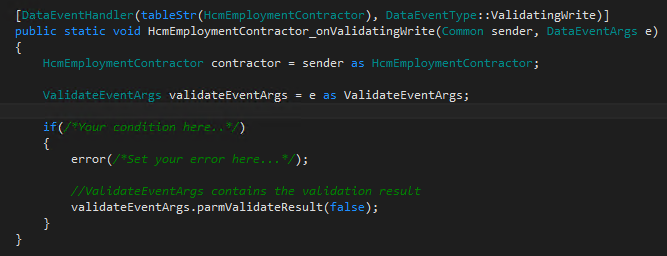
How to set validation state from an event in AX7 / D365

In AX7 / D365 we can change the state of the validation through event handler as shown in below image.


Monday, 18 December 2017

Technique to use Pre-Event Handler functionality for Protected Method in AX7 / D365

During my development I have to run a block of code before calling of method in a class. So when I tried to create a Pre-Event handler of the method it throws an error because of Protected access modifier of the method. 

So what I have done to achieve this is that I have created an extension of a class and copied the protected method and defined my code block after that, then I have simply called the base method by using next keyword. By doing this I have given my own Pre-Event handler implementation without using any event handler as shown in below images.


Wednesday, 13 December 2017

How to get list of products, product attributes and attribute values in AX2012 & AX7 / D365

I have came across a task in which I need to populate a grid that display a list of products, product attributes and attribute values. So Instead of getting all the related data sources I have created a view that shows Products, Product attributes and its value.

In AX2012 & AX7 / D365 there is already a view named EcoResProductAttributeValue but it cannot provide textual data instead it gives the Record Id's of multiple data sources. In my view I have use EcoResProductAttributeValue view but I have displayed values that is more meaningful as per my task context.

Simply I have created a query in which I drag and drop all the related datasources.
1- EcoResProductAttributeValue
2- EcoResAttribute
3- EcoResProduct
4- EcoResTextValue


After that I have created relations as shown in image.


After that I have simple created a view and set its Query property as shown below.


Tuesday, 12 December 2017

Best practice suppression in AX7 / D365

Best practices feature is recommended for any Microsoft Dynamics AX partner or end user who is enhancing or customizing Microsoft Dynamics AX. Suppressing best practices is not a recommended way. But in some cases we need to suppress best practices, for that we have two ways to do this in AX7 / D365.

1- One way is to use SuppressBPWarning attribute as shown below:


2- Second way to suppress best practice is by using "Edit Best Practice Suppressions" option:


Note:In some cases best practice suppression file cannot created and it throws error as shown below.


So for the resolution of this error we need to manually create an XML file in our model under this path. (Drive:\AosService\PackagesLocalDirectory\MyModel\AxIgnoreDiagnosticList\ModelName_BPSuppressions.xml).


Now open Suppression file in Visual studio and add your IgnoreDiagnostics as shown below.


Monday, 11 December 2017

How to Connect & Setup TFS in D365 / AX7

In AX7 & D365 MorphX development environment no longer exists. Now we have to done the development on Visual Studio. For sharing and merging the code among development peers, Team foundation server is introduced. In this blog I will explain how to connect Visual studio with TFS, create a separate directory for your code which is bind with
AX7 / D365 Models and also how to setup new AX7 / D365 development environment.


Step#1 
Create folder named SourceCode_YourName.

Step#2
Manage connection ->  add new TFS server, and use external link for TFS shared with you. (TFS server link.   http://Link_Here:8080/tfs)


Step#3
Open solution explorer.


Step#4

Give mapping of SourceCode_YourName folder.


Step#5

Run MkLink command in order to synchronize your code with folder.


Step#6
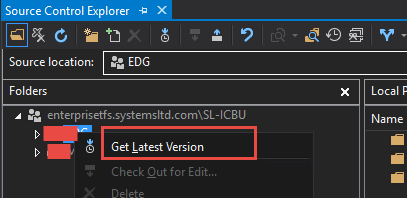
Get latest code.


Step#7

After getting the latest code. Run Build and Synchronize.


How to Check if a Purchase Order Is Partially Received in D365 F&O

In Dynamics 365 Finance & Operations, you may need to determine whether a Purchase Order (PO) is partially received — meaning some quan...